Viewing Categorization History
The History page provides detailed access to all categorizations performed in the last 45 days. While the Dashboard’s Latest Categorizations pane shows recent activity, the History page offers comprehensive filtering, search capabilities, and detailed views of past categorization requests.
Accessing the History Page
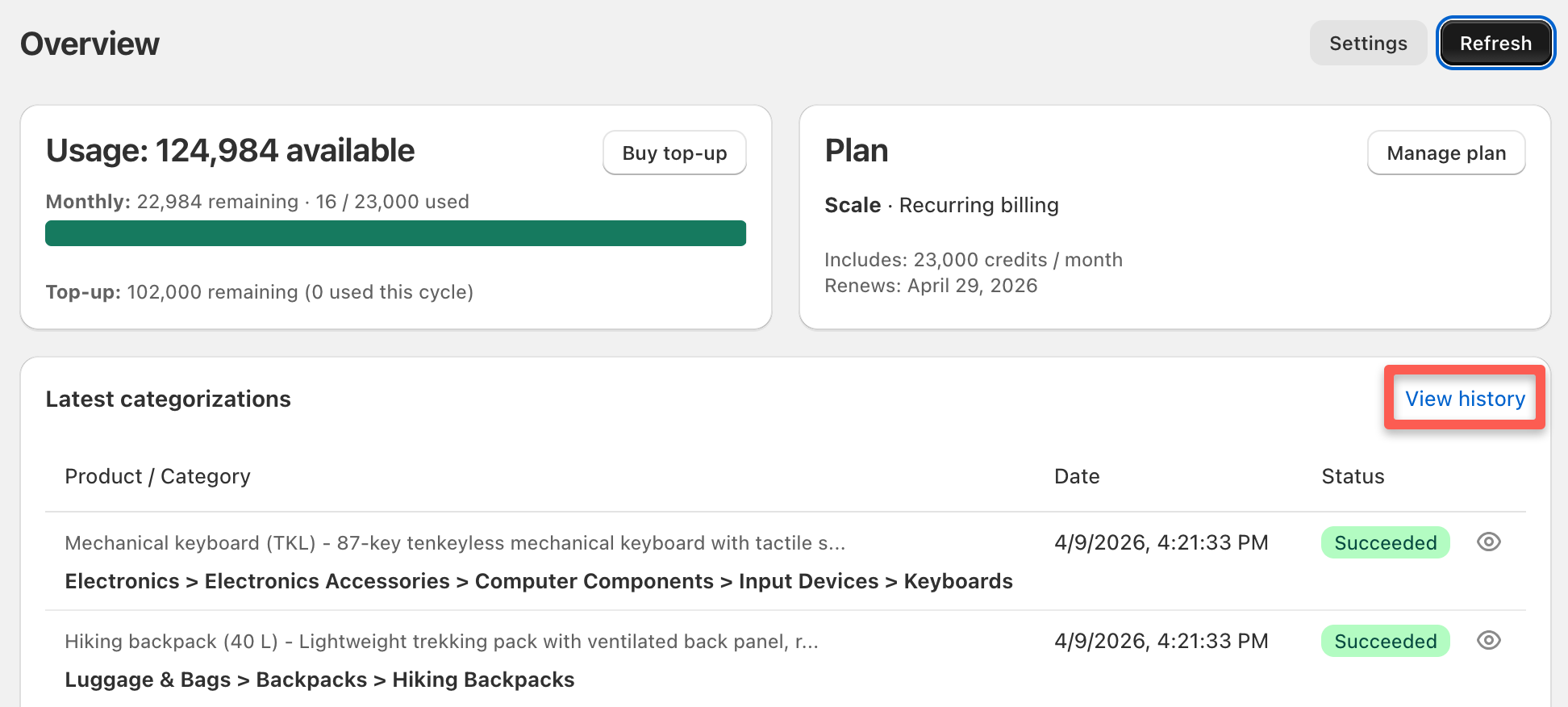
From the Dashboard, click the View History link in the top-right corner of the Latest Categorizations pane. This opens the full History page where you can review and analyze all past categorizations.
History Page Overview
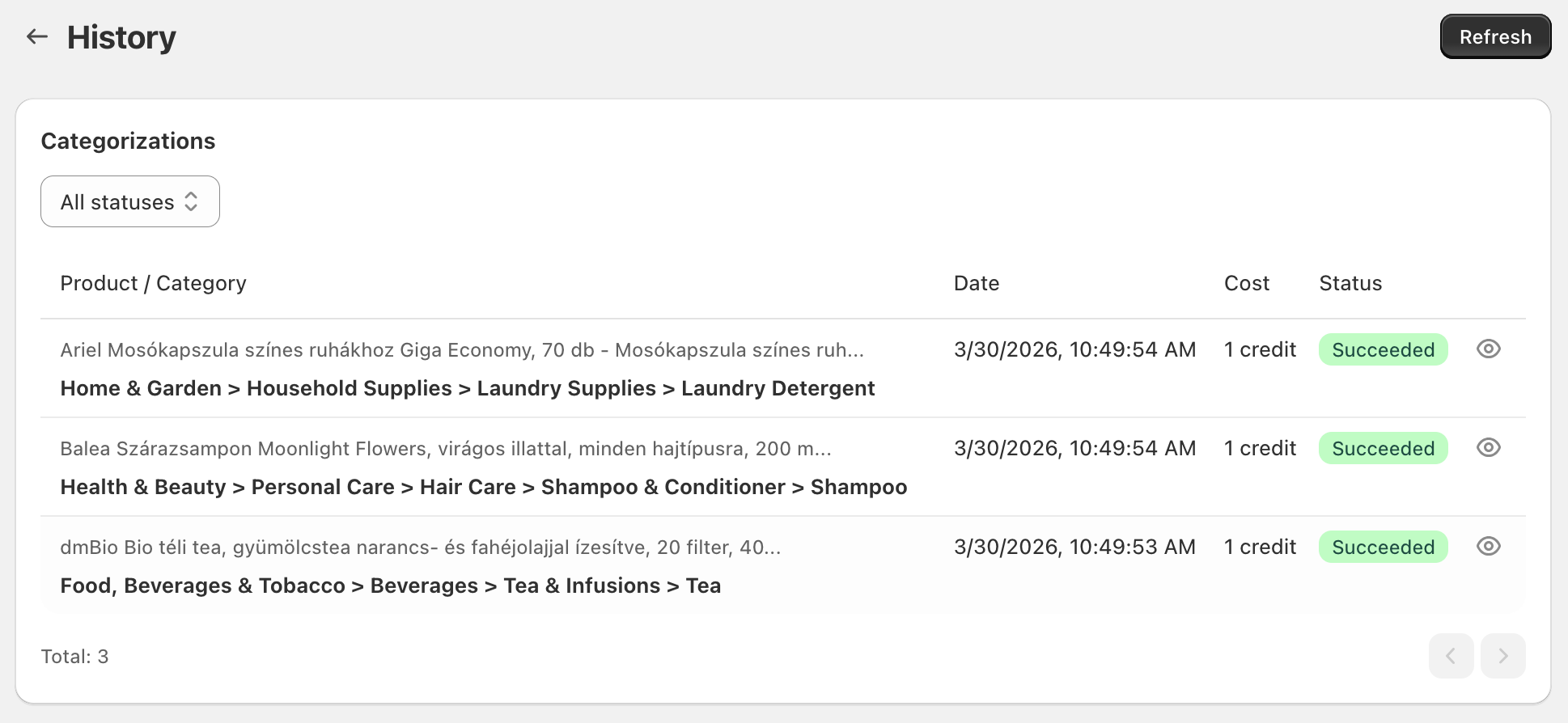
The History page displays categorization events from the past 45 days. Older categorizations are automatically deleted and no longer visible.
Each page shows 10 categorization events with pagination controls at the bottom to navigate through your complete history.
Filtering Categorizations
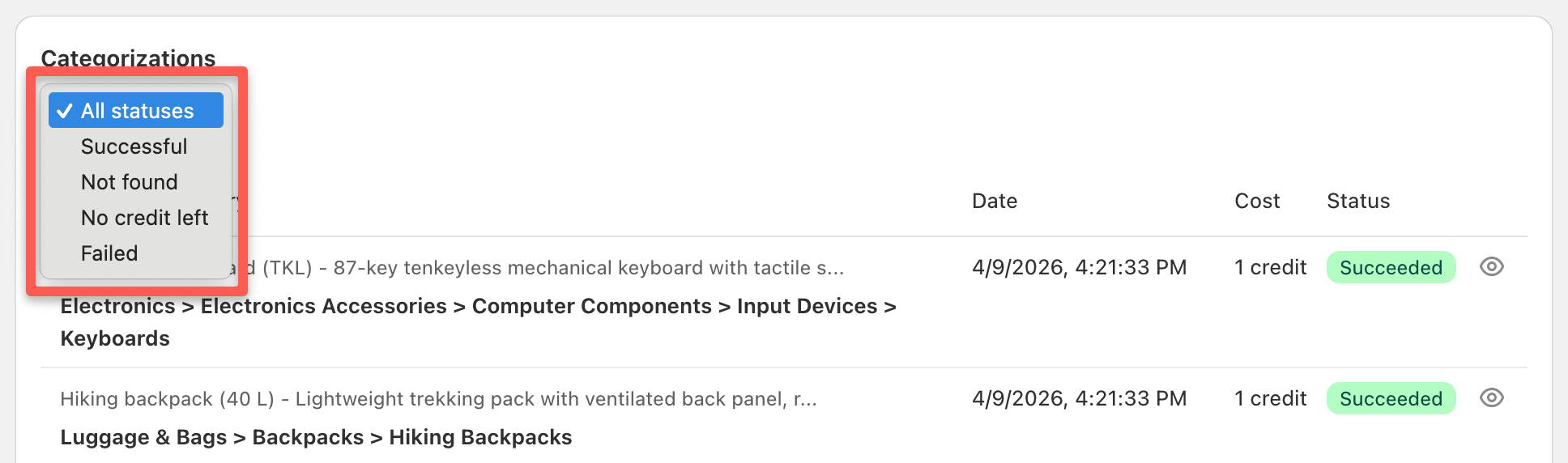
The status filter at the top of the page helps you narrow results to specific outcomes. This is useful for identifying patterns, reviewing specific result types, or troubleshooting issues.
Available Filter Options
Successful categorizations - Shows all categorizations where a category was found and assigned, regardless of confidence level (includes both green and yellow status badges)
Not found categorizations - Shows categorizations where no category could be determined (gray status badges)
Errors - Shows categorizations that failed due to technical issues (red status badges)
No credit left - Shows categorization attempts that were rejected because your credit balance was insufficient at the time
Using Filters Effectively
Find products needing better descriptions:
- Filter by “Not found categorizations”
- Review which products returned no category
- Improve descriptions or add custom instructions for recurring patterns
Monitor categorization quality:
- Filter by “Successful categorizations”
- Review the assigned categories to verify accuracy
- Identify patterns in confident vs. lower-confidence results
Troubleshoot technical issues:
- Filter by “Errors”
- Check for patterns in failed categorizations
- Contact support if errors persist with specific Request IDs
Categorization List Information
Each categorization in the list displays:
Product description preview - A chunk of the product description to help you quickly identify which product was categorized
Category - The full category path assigned to the product (if found)
Date - When the categorization occurred
Cost - How many credits were consumed (typically 1 credit per categorization)
Status badge - Color-coded indicator showing the outcome:
- 🟢 Green: AI confidently selected category
- 🟡 Yellow: Top-ranked category used when AI couldn’t decide
- ⚫ Gray: No category found
- 🔴 Red: Error occurred
For detailed explanations of what each status means and how to interpret them, see Categorization Status Indicators.

Available Actions
Two action icons may appear next to each categorization:
View Categorization Details (Always Available)
The View Details icon (👁️) opens a modal dialog with complete information about that specific categorization.
Click this icon to see:
Product description - The complete description that was categorized, with a link icon that opens the product in Shopify admin in a new tab
Category - The full category path chosen for this product
Date - Timestamp of when the categorization occurred
Cost - Number of credits consumed (typically 1 credit)
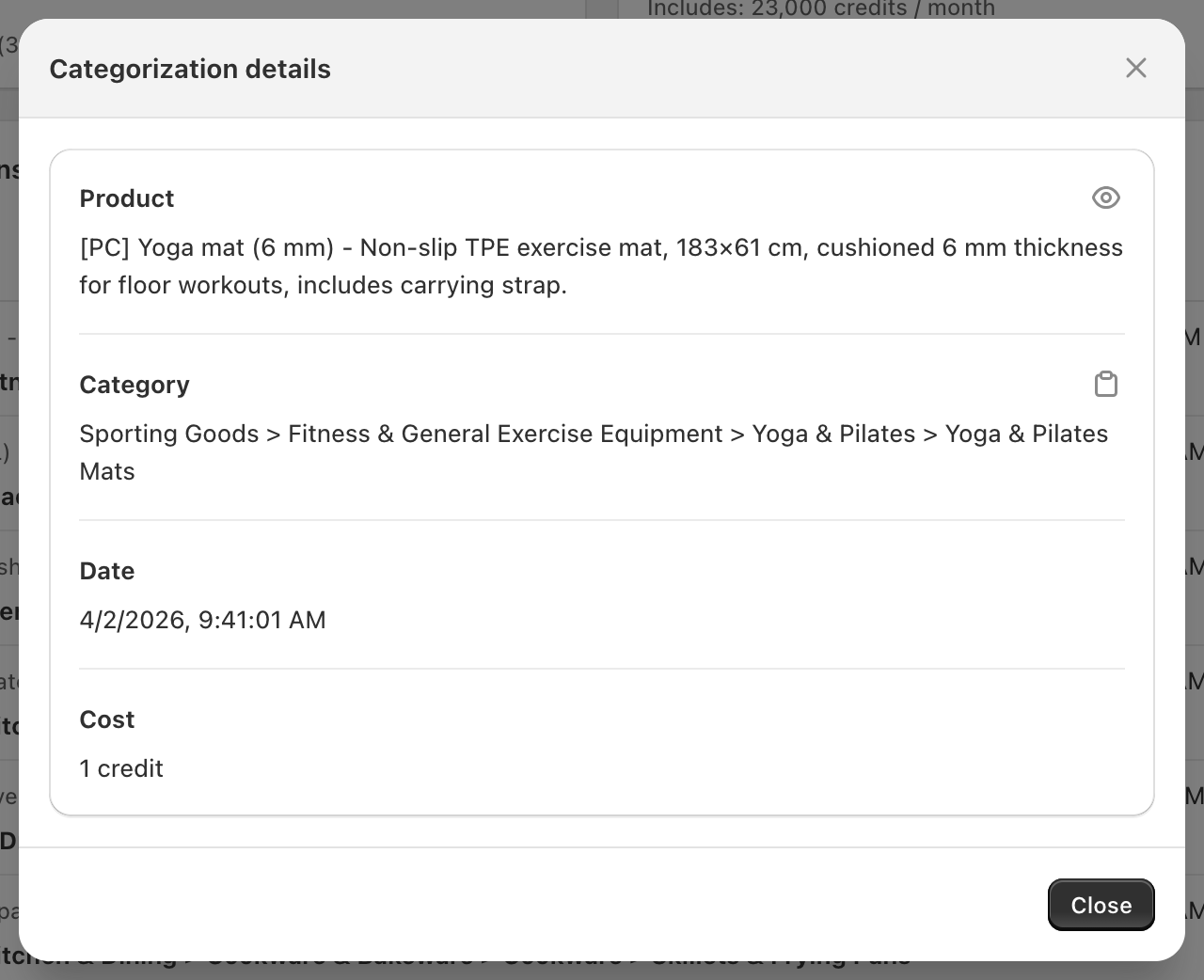
This dialog provides the same detailed information as viewing categorization details from the Dashboard’s Latest Categorizations pane.
Recategorize (Conditional)
The Recategorize icon (🔄) appears only for categorizations that failed or were rejected due to insufficient credits.
Clicking this icon:
- Queues the product for categorization again
- Uses your current settings (not the original categorization settings)
- Processes in the background like any other categorization
- Consumes 1 credit from your current balance
When to use recategorize:
- After fixing technical issues that caused errors
- After purchasing credits to process previously rejected requests
- After improving product descriptions
- After adjusting settings or adding custom instructions
Note: Recategorization consumes another credit, just like a new categorization request.
Pagination Controls
Navigate through your categorization history using the pagination controls at the bottom of the page.

The pagination shows:
- Current page number
- Total number of pages
- Previous/Next page buttons
- Direct page number navigation
Refreshing the View
Click the Refresh button in the top-right corner of the page to reload the latest data from the server.
This is useful when:
- Ongoing categorizations are processing in the background
- You’ve just completed a bulk categorization operation
- You want to see the most recent categorization results
- You’ve applied filters and want to ensure you’re seeing current data
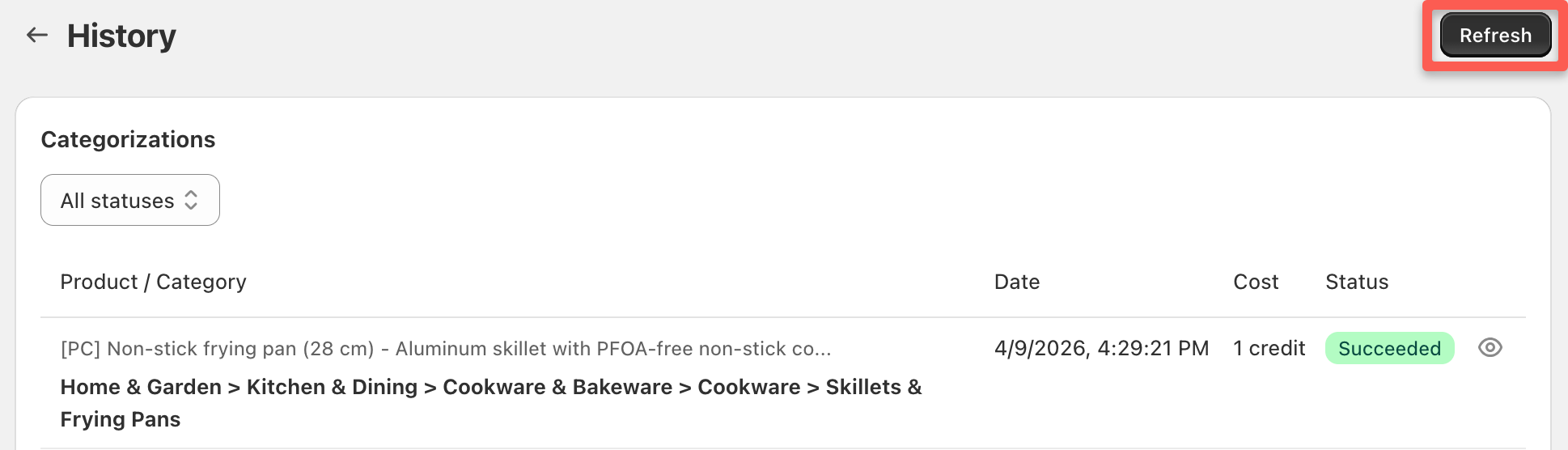
The page refreshes automatically when you navigate between pages or change filter settings, but the manual refresh button lets you update the current view without changing filters or navigation.
Data Retention
The History page displays categorizations from the last 45 days only. Older categorization requests are automatically deleted and cannot be retrieved.
If you need longer-term categorization tracking:
- Export or log important categorizations before they expire
- Monitor your History page regularly for patterns or issues
- Keep records of Request IDs for categorizations you may need to reference later
Common Workflows
Review Recent Bulk Categorization
- Filter by date (if you categorized products today or yesterday)
- Review status distribution - how many green, yellow, gray results?
- Click View Details on yellow or gray results to understand why confidence was lower
- Recategorize products with errors after addressing issues
Identify Products Needing Attention
- Filter by “Not found categorizations”
- Review product descriptions to identify what information is missing
- Note patterns - do certain product types consistently return no category?
- Improve descriptions or add custom instructions for recurring patterns
- Manually recategorize improved products
Monitor Categorization Quality Over Time
- Review categorizations without filters to see overall distribution
- Note the ratio of green (confident) to yellow (fallback) results
- Check if specific product categories have lower confidence
- Adjust settings, descriptions, or custom instructions based on patterns
Troubleshoot Categorization Issues
- Filter by “Errors” to see failed categorizations
- Click View Details to see error information
- Check for patterns - are specific products failing consistently?
- Use Request IDs when contacting support about persistent errors
- Recategorize after addressing underlying issues
Next Steps
- Dashboard Overview - Monitor recent categorizations in real-time and track credit usage
- Categorization Status Indicators - Understand what each colored badge means
- Configuring Settings - Adjust categorization behavior based on History insights
- Categorizing Products - Learn all four categorization methods
The History page is your primary tool for analyzing categorization patterns, identifying issues, and understanding how well Categorify works with your product catalog.