How Categorization Works
When you click “Categorize” on a product, Categorify uses AI to analyze the product information and assign an appropriate category from Shopify’s taxonomy. This article explains how the process works behind the scenes.
What Happens When You Categorize
Whether you’re categorizing a single product, bulk products, or have automatic categorization enabled, the same process occurs:
- Categorify reads the product’s title and description
- The AI analyzes this information through a 3-step pipeline
- A category is assigned to the product (if found)
- The
categorized-by-aitag is added
Let’s explore how the AI actually makes these decisions.
Understanding Shopify’s Product Taxonomy
Before diving into the categorization pipeline, it’s important to understand what the AI is choosing from.
The Taxonomy Structure
Shopify’s product taxonomy contains over 10,000 categories organized in a hierarchical tree structure. Categories progress from broad to specific:
Home & Garden
├── Pool & Spa
│   ├── Swimming Pools
│   ├── Saunas
│   └── Pool & Spa Accessories
│       ├── Pool Cleaners & Chemicals
│       ├── Pool Covers & Ground Cloths
│       └── Pool Toys
└── Lawn & Garden
    ├── Outdoor Living
    └── Snow Removal
Parent vs. Leaf Categories
Categories come in two types:
Parent categories have subcategories beneath them. Examples:
Home & Garden > Pool & Spa(has children like Swimming Pools, Hot Tubs, etc.)Electronics > Computers(has children like Laptops, Desktops, etc.)
Leaf categories are the most specific level—they have no subcategories. Examples:
Home & Garden > Pool & Spa > Swimming Pools(no further subcategories)Electronics > Computers > Laptops(no further subcategories)
Why This Structure Matters
The hierarchical structure affects how Categorify makes decisions:
When descriptions are clear, the AI can confidently select specific leaf categories that precisely describe your product.
When descriptions are ambiguous, the AI may select a parent category instead of guessing between similar leaf categories. This is more accurate than choosing the wrong specific category.
For example, if a product description says “smartphone” but doesn’t specify whether it’s unlocked, contract, or pre-paid, the AI might select the parent category Mobile Phones rather than guessing incorrectly between the three specific types.
Your settings control whether Categorify can use parent categories or must always return leaf categories. See Configuring Settings for details.
The Categorization Pipeline
Categorify uses a 3-step pipeline to analyze products and assign categories. Each step builds on the previous one.
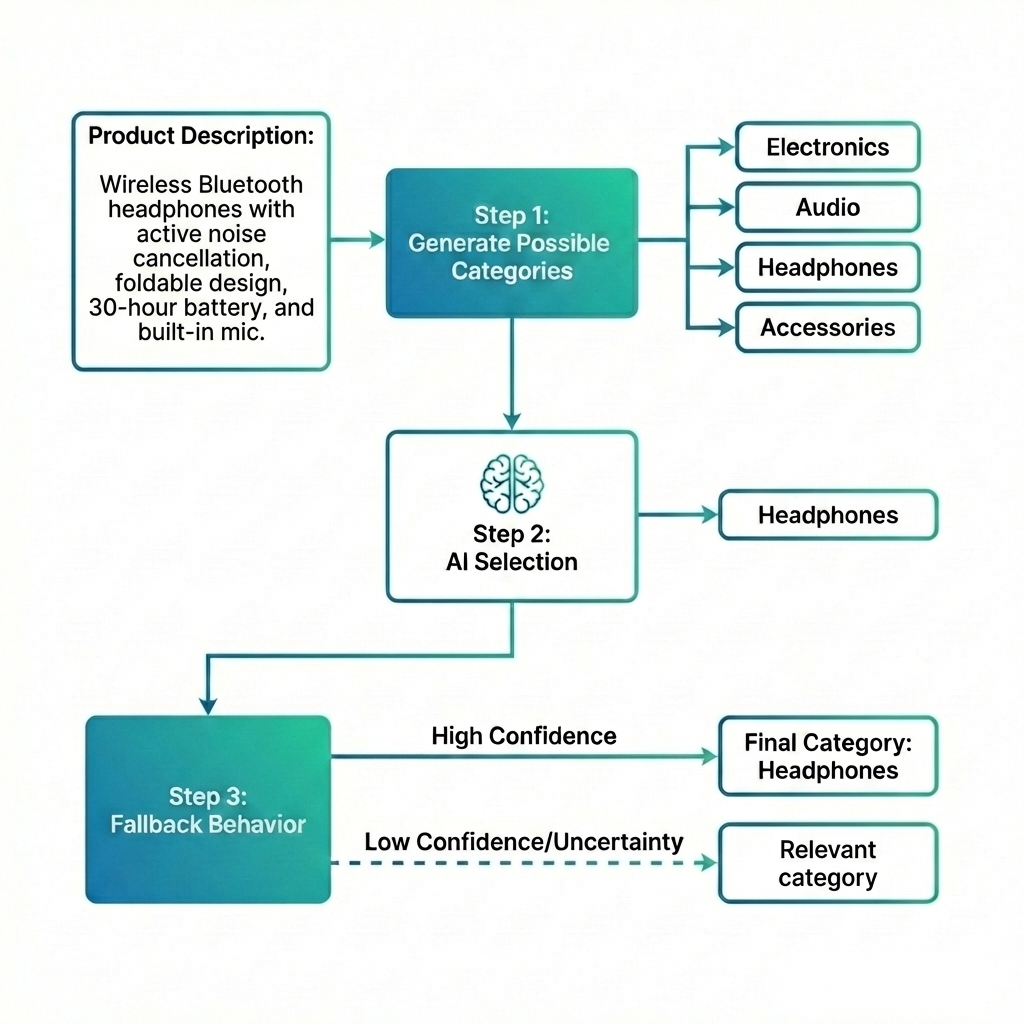
Step 1: Generate Possible Categories
First, the AI reads your product’s title and description and identifies 15 possible categories that might match. Each possible category receives a relevance score between 0 and 1, where higher scores indicate better matches.
How it works: The AI understands the meaning of your product description—not just matching keywords, but comprehending what the product actually is, what it’s made of, who it’s for, and what it does.
Example: For a product described as “inflatable ring pool for children, made from durable PVC, 90cm diameter,” the AI might generate:
Home & Garden > Pool & Spa > Swimming Pools(score: 0.95)Home & Garden > Pool & Spa > Pool Toys(score: 0.87)Baby & Toddler > Baby Toys(score: 0.72)Sports & Recreation > Water Sports(score: 0.68)- … 11 more possibilities
The AI considers Shopify’s entire 10,000+ category taxonomy and selects the 15 most relevant matches.
Step 2: AI Selection
Next, the AI evaluates the 15 possible categories and attempts to select the single best match. This isn’t just picking the highest score—the AI considers:
- What the product description actually describes
- How categories relate to each other in the taxonomy
- Whether the description provides enough information to distinguish between similar categories
- Your custom AI instructions to guide decision-making
Custom AI instructions are especially powerful in this step. If you’ve written instructions like “Prioritize material over style for clothing” or “Default to unlocked for phones unless specified,” the AI applies these rules when evaluating which category best matches your product. This helps resolve ambiguity and ensures categorization aligns with your business logic. See Writing AI Instructions for detailed guidance on creating effective instructions.
When the AI is confident, it selects a category and you see a 🟢 green status indicator. This means the AI actively chose this category as the best match.
When the AI is uncertain, it can’t confidently choose between multiple similar categories. This happens when descriptions are vague or legitimately ambiguous. The pipeline proceeds to Step 3.
Step 3: Fallback Behavior
If the AI couldn’t confidently select a category in Step 2, what happens next depends on your settings:
If “Use best-guess category” is enabled: The system returns the possible category with the highest relevance score from Step 1. You see a 🟡 yellow status indicator, meaning this is a score-based guess rather than an AI decision.
If “Use best-guess category” is disabled: The system returns no category. You see a ⚫ gray status indicator, meaning the AI refused to guess.
This setting lets you choose between maximum coverage (always get some category) versus precision (only get categories the AI is confident about). See Categorization Strategies to decide which approach fits your needs.
What Makes Categorization Easy vs. Hard
The quality of your product descriptions dramatically affects categorization success. Here’s what the AI needs to work well:
Easy to Categorize
Products with self-contained descriptions that explain what the product is, who it’s for, and key characteristics work best.
Example: Small Inflatable Pool
BASIC POOL SMALL - green stripe - Our small inflatable ring pool is a
summer classic, perfect for watersplashing and fun on warm days. Made
from durable PVC and designed with two separate air chambers with valves
for inflating and deflating. Dimensions: D: 90 cm H: 20 cm. Suitable
for children age 3 years+. CE marked.
Result: 🟢 Home & Garden > Pool & Spa > Swimming Pools
Why this works:
- Clearly states what it is (“inflatable ring pool”)
- Specifies who it’s for (“children age 3 years+”)
- Describes material (“durable PVC”)
- Includes dimensions and intended use
- The AI confidently identifies this as a swimming pool
Hard to Categorize
Products with vague or incomplete descriptions that assume you already know what the product is struggle with categorization.
Example: Book with Unclear Description
Millie Fleur Saves the Night - Wednesday Addams meets The Night Gardener
in the sequel to the New York Times bestselling Millie Fleur's Poison
Garden. A delightfully peculiar story about embracing the magic of the
night. Garden Glen was afraid of the dark...
Why this struggles:
- Never explicitly says “book” or “novel”
- Describes plot and comparisons to other works
- Assumes reader knows this is the sequel to another book
- References other titles without context
- The AI has to infer from phrases like “story” and “sequel” that this is a book
Result: May get 🟡 yellow (best guess) or ⚫ gray (no category found)
Improving Difficult Products
If you have products with vague descriptions:
- Add explicit product type: “Children’s fiction book” or “Middle-grade novel”
- Include format details: “Hardcover, 256 pages” or “Paperback edition”
- State the category directly: “Book” shouldn’t be implied—say it clearly
- Write for someone who’s never heard of the product: Assume no prior knowledge
You don’t need to rewrite existing descriptions—just add a sentence or two that explicitly states what the product is.
The Categorized Tag
After successfully categorizing a product, Categorify adds a tag to track which products have been processed.
What It Is
The categorized-by-ai tag is added to every product that Categorify categorizes. You can see this tag in Shopify admin on the product detail page.
Why It’s Needed
The tag prevents infinite loops during automatic categorization. Here’s what would happen without it:
- Categorify categorizes a product and assigns a category
- Assigning the category counts as a product update
- Shopify sends a “product updated” webhook
- The webhook triggers another categorization
- This updates the product again… and repeats forever
The tag breaks this loop. When Categorify receives a webhook, it checks for the categorized-by-ai tag. If present, the product is skipped since it’s already been categorized.
When It’s Used
The categorized tag is only checked for automatic categorization triggered by webhooks (new or modified products).
Manual categorization ignores the tag. When you explicitly categorize products through Shopify admin—single products, bulk selections, or entire collections—Categorify processes them regardless of the tag. This lets you re-categorize products if needed.
Don’t Remove the Tag
Important: Don’t remove the categorized-by-ai tag from products unless you want them re-categorized automatically. Removing the tag tells Categorify to process the product again on the next update.
If you need to re-categorize a product, use manual categorization from Shopify admin instead of removing the tag.
For everything about the tag—renaming it, when it’s safe to remove, and common questions—see Understanding the Categorized Tag.
How Settings Affect the Pipeline
Your settings in Categorify control how the categorization pipeline behaves. Here’s a simplified overview:
Return only leaf categories
- Enabled: Only the most specific categories are considered in Step 1
- Disabled: Both parent and leaf categories are possible
Instructions to the AI
- Influences how the AI evaluates categories in Step 2
- Helps the AI handle ambiguous products or apply your business rules
- See Writing AI Instructions for detailed guidance
Use best-guess category if AI cannot decide
- Enabled: Step 3 returns the highest-scored category (yellow indicator)
- Disabled: Step 3 returns no category (gray indicator)
For complete details on each setting and how to configure them, see Configuring Settings. To understand which combination of settings works best for your store, see Categorization Strategies.
What Categorization Produces
After the pipeline completes, you receive:
A category assignment (if found)
- The full category path from Shopify’s taxonomy
- Example:
Home & Garden > Pool & Spa > Swimming Pools
A status indicator
- 🟢 Green: AI confidently selected this category
- 🟡 Yellow: Top-ranked category used when AI couldn’t decide
- ⚫ Gray: No category found
The categorized tag (for automatic categorization)
- Added to the product to prevent re-processing
A history record
- Stored for 45 days on the History page
- Includes the product description, assigned category, status, and date

Next Steps
Now that you understand how categorization works:
- Categorization Status Indicators - Deep dive into what each status means and how to interpret them
- Configuring Settings - Learn how to adjust each setting to match your needs
- Categorization Strategies - Choose the best approach for your catalog
- Writing AI Instructions - Guide the AI’s decisions for ambiguous products
Ready to optimize your categorization? Start with Categorization Strategies to choose the best configuration for your store.