Dashboard Overview
The Dashboard is your central hub in Categorify, providing at-a-glance visibility into your credit usage, subscription status, and recent categorization activity. Everything you need to monitor your account appears here in three main sections.
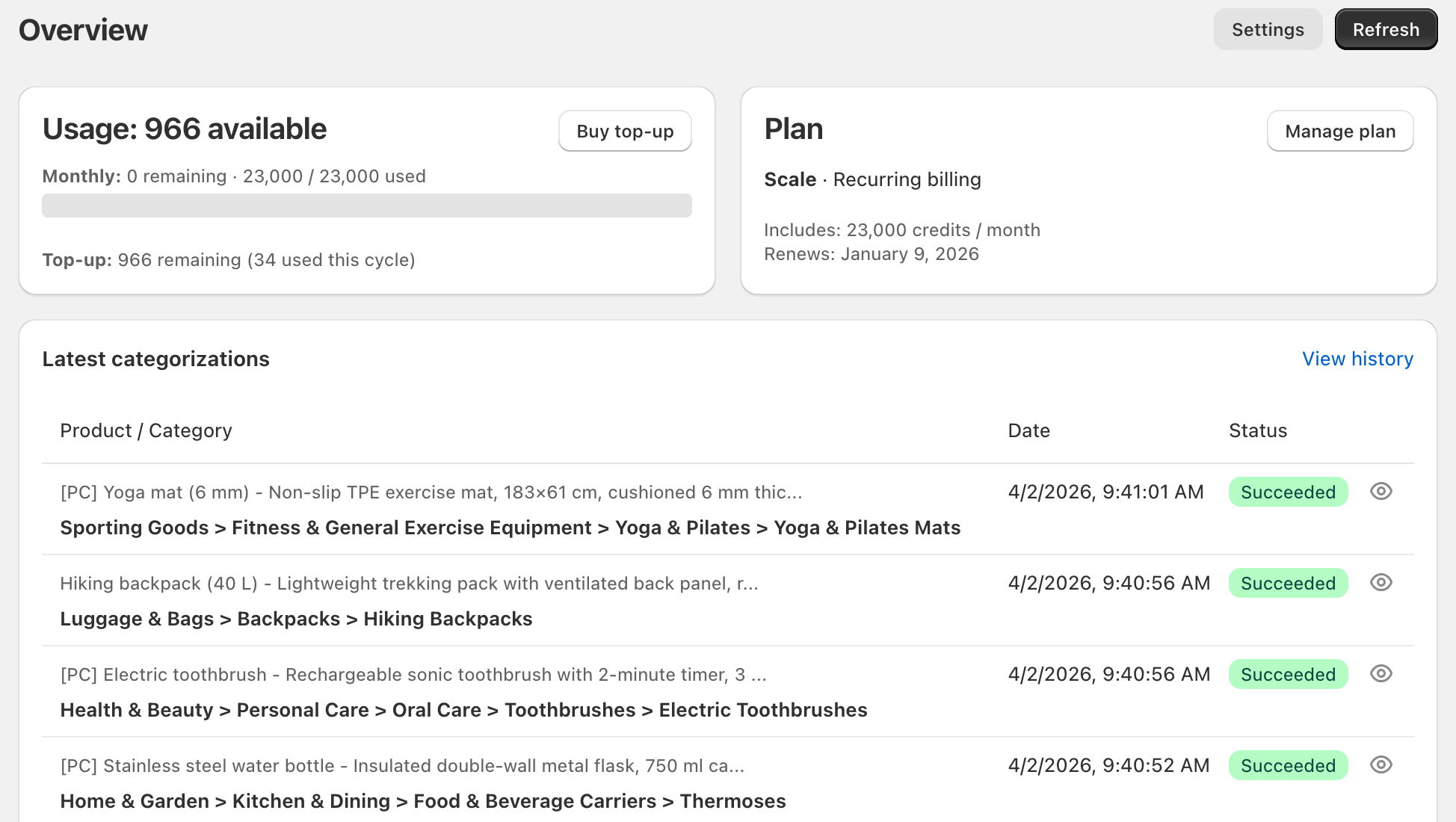
Dashboard Layout
The Dashboard consists of three panes:
Usage pane - Real-time credit balance and consumption tracking
Plan pane - Subscription details and renewal information
Latest categorizations pane - Your most recent categorization results with live updates
In the top-right corner, you’ll find two utility buttons:
Settings button - Opens the Settings page where you can configure automatic categorization, AI instructions, and other preferences
Refresh button - Manually reloads all dashboard data from the server, including usage information, plan details, and the latest categorization status
Usage Pane
The Usage pane shows your current credit balance and consumption patterns at a glance.
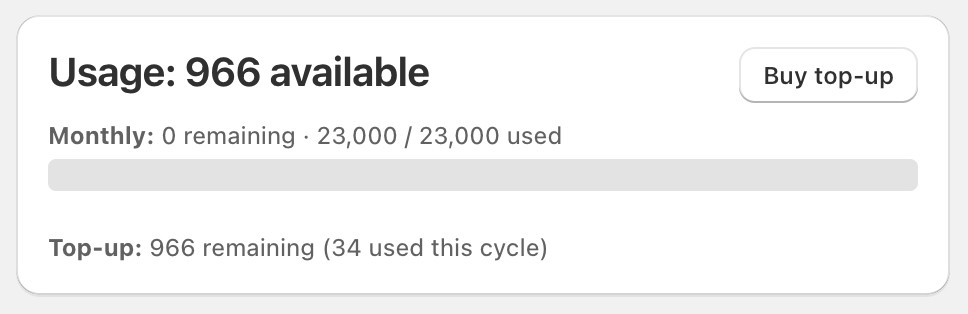
Credit Information
You’ll see two types of credits displayed:
Monthly credits - Shows remaining credits and total used from your plan’s monthly allocation. A visual bar indicates what percentage of your monthly credits you’ve consumed.
Top-up credits - Shows remaining credits and how many have been used during the current billing cycle. These credits persist across billing cycles until consumed.
The pane displays your total available credits (monthly + top-up) prominently at the top, so you always know your current capacity.
For complete details on how credits work, when they’re consumed, and how to manage them, see Understanding Credits.
Actions
Buy top-up credits button - Opens the credit purchase flow where you can select a top-up package and complete payment
Upgrade button - Appears when you’re on a trial or your plan has been cancelled. Takes you to plan selection to subscribe or reactivate
Plan Pane
The Plan pane displays your subscription information and renewal schedule.
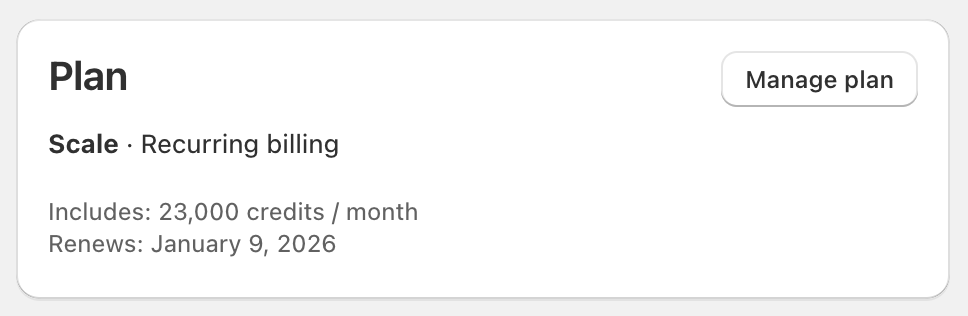
Plan Details
Current plan - Your active subscription tier (Starter, Growth, Scale, or Pro)
Monthly credits - The number of credits included in your plan that renew each billing cycle
Renewal date - When your next billing cycle begins and monthly credits refresh
Actions
Manage plan and billing button - Opens the customer portal where you can update payment methods, view invoices, change plans, or cancel your subscription
Upgrade button - Appears during trial or after cancellation. Takes you directly to plan selection
For information about available plans, features, and pricing, see Subscription Plans & Billing.
Latest Categorizations Pane
The Latest Categorizations pane shows your 10 most recent categorization requests with automatic updates as new categorizations complete. In the top-right corner of this pane, you’ll find a “View History” link that takes you to the History page where you can access your complete categorization history, filter results, and review categorizations from the past 55 days.
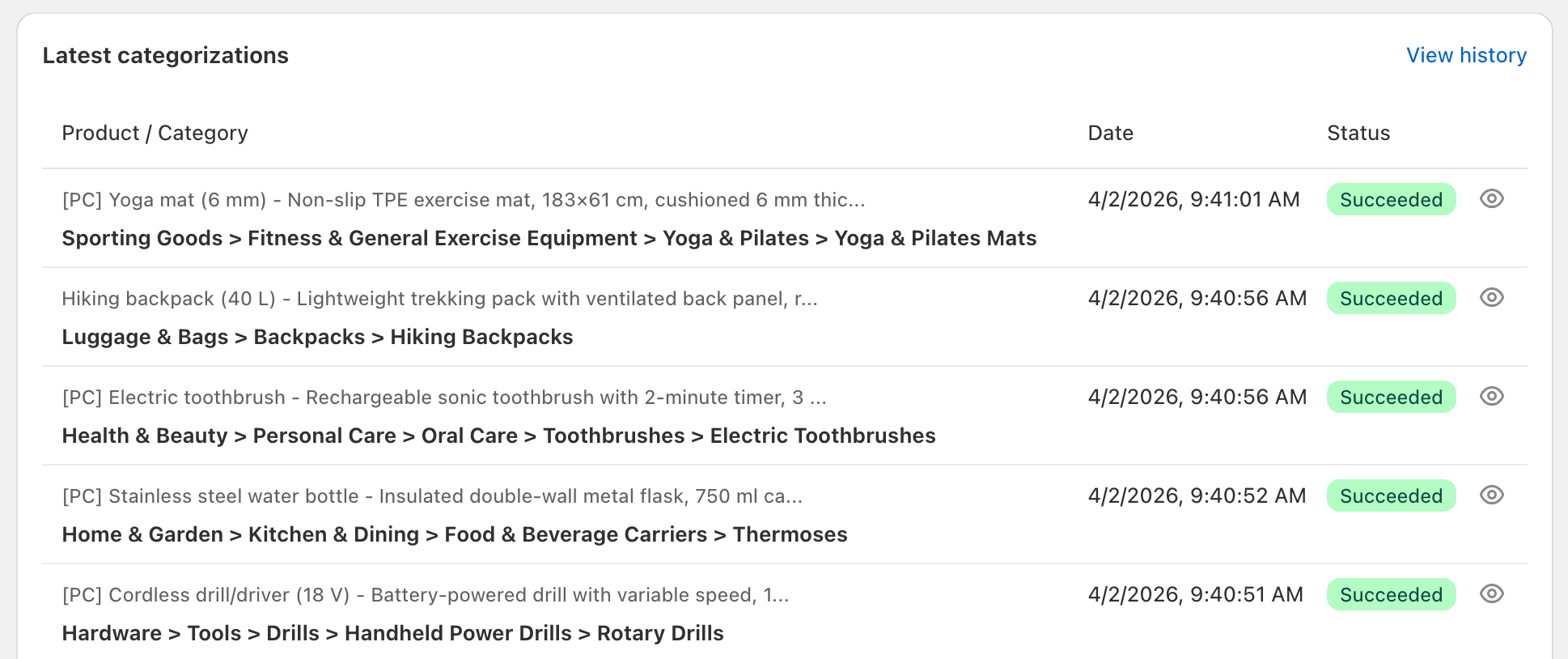
Categorization List
Each entry displays:
Product description preview - The first portion of the product description that was categorized
Category - The full category path assigned to the product (if found)
Date - When the categorization was performed
Status indicator - Color-coded badge showing the outcome:
- 🟢 Green: AI confidently selected category
- 🟡 Yellow: Top-ranked category used when AI couldn’t decide
- ⚫ Gray: No category found
- 🔴 Red: Error occurred
For detailed explanations of what each status means and how to interpret them, see Categorization Status Indicators.
Action Icons
Two action icons appear in the rightmost column:
Show details icon (👁️) - Always available. Opens a dialog with complete categorization information
Recategorize icon (🔄) - Appears only when categorization failed. Queues the product for re-categorization using your current settings
Categorization Details Dialog
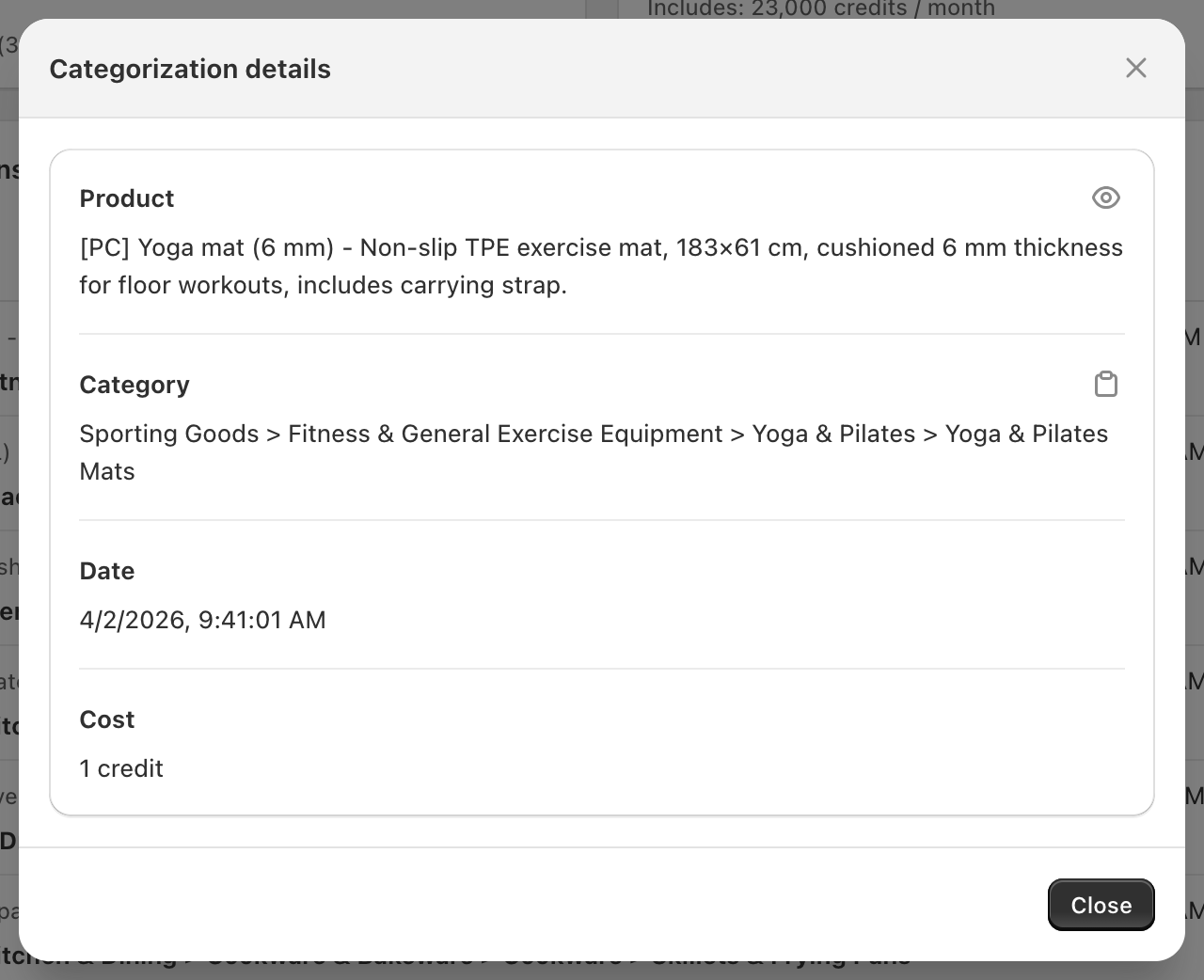
Clicking the “Show details” icon opens a dialog displaying:
Product description - The complete description that was categorized
Go to Product icon - Link icon next to the description that opens the product in Shopify admin in a new tab
Category - The full category path chosen for this product
Date - Timestamp of when the categorization occurred
Cost - Number of credits consumed (typically 1 credit)
This gives you quick access to categorization details without navigating to the History page.
Recategorizing Products
The “Recategorize” icon appears next to failed categorizations (red status indicators). Clicking this icon:
- Queues the product for categorization again
- Uses your current settings (not the original categorization settings)
- Processes in the background like any other categorization
- Updates the entry when complete
This is useful when you’ve adjusted your AI instructions or settings and want to retry a product that previously failed.
Note: Recategorization consumes another credit, just like a new categorization request.
Real-Time Updates
When you have categorizations processing in the background, the Latest Categorizations pane updates automatically as results arrive. You don’t need to refresh the page—new completions appear at the top of the list instantly.
Ongoing Categorizations
While categorizations are processing, you’ll see:
Progress information - Number of categorizations remaining in the queue
Cancel ongoing categorizations button - Stops processing and removes queued categorizations
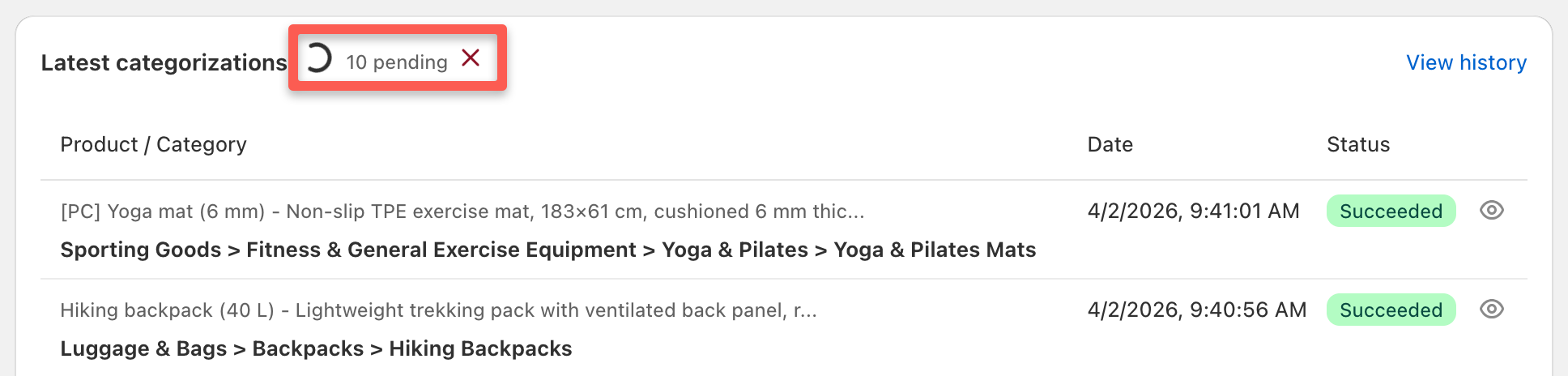
Clicking the cancel button immediately:
- Stops processing remaining categorizations in your queue
- Removes them from the queue entirely
- Does not consume credits for cancelled categorizations
- Cannot be undone—you’ll need to re-queue products if you change your mind
This is useful if you realize you need to adjust settings before processing a large batch.
Empty State
When you haven’t performed any categorizations yet (such as when you first install Categorify), the Latest Categorizations pane displays a video demonstration showing how to use the app.
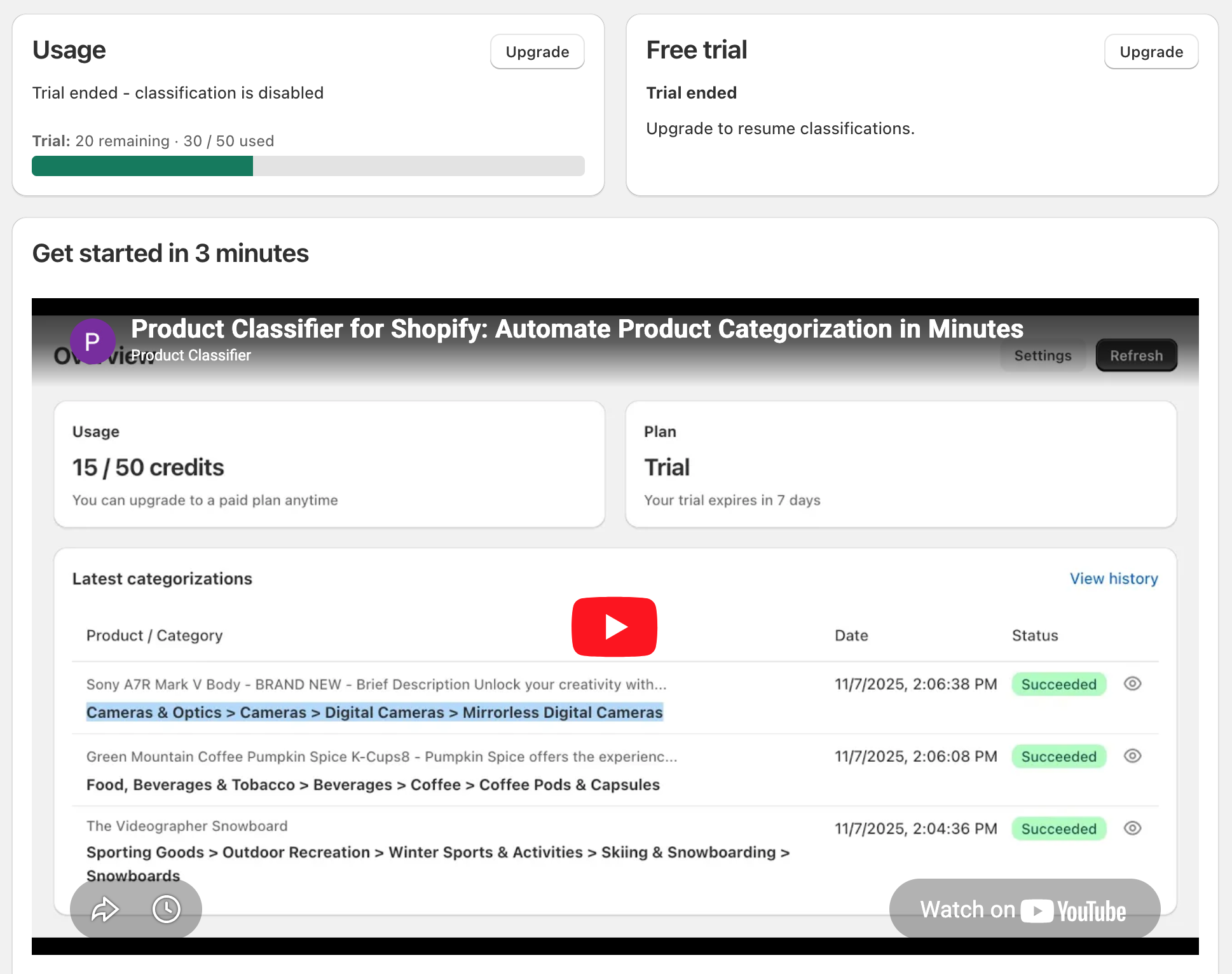
This gives you a quick visual introduction to categorization workflows before you begin using the app.
Monitoring Your Account
The Dashboard provides the essential information you need to monitor your Categorify usage:
Credit consumption - Track how quickly you’re using credits and whether you need to purchase top-ups or upgrade your plan
Categorization patterns - See recent results at a glance to identify if many products are getting failed or low-confidence categorizations
Plan status - Know when your next billing cycle begins and how many monthly credits you’ll receive
Active processing - Monitor background categorizations and cancel if needed
For detailed usage analysis and filtering capabilities, see Viewing Categorization History.
Dashboard Workflows
Reviewing Recent Categorizations
- Check the Latest Categorizations pane for status indicators
- Click “Show details” on any entry to see complete information
- Click “Go to Product” to view or edit the product in Shopify
- Navigate to History for advanced filtering and searching
Handling Failed Categorizations
- Identify entries with red (error) status indicators
- Click “Show details” to review the product description
- Determine if the description needs improvement
- Update the product description in Shopify if needed
- Click “Recategorize” to try again with current settings
Managing Credits
- Check the Usage pane to see available credits
- Monitor the percentage bar for monthly credit consumption
- Buy top-up credits before running out if you have a large batch coming
- Consider upgrading if you consistently exhaust monthly credits
Tracking Ongoing Processing
- Start a bulk categorization from Products or Collections
- Return to Dashboard to monitor progress
- Watch as completed categorizations appear in real-time
- Cancel if you need to adjust settings before completion
Next Steps
- Categorization Status Indicators - Understand what each colored status badge means and how to improve results
- Viewing Categorization History - Access your complete categorization history with filtering and search
- Configuring Settings - Adjust automatic categorization, AI instructions, and other preferences
- Understanding Credits - Learn how credits work, when they’re consumed, and how to manage your balance
- Subscription Plans & Billing - Review plan options and manage your subscription
The Dashboard gives you everything you need for day-to-day monitoring. For detailed analysis of categorization patterns, use the History page with its advanced filtering capabilities.